Anatomy of the Help Experience
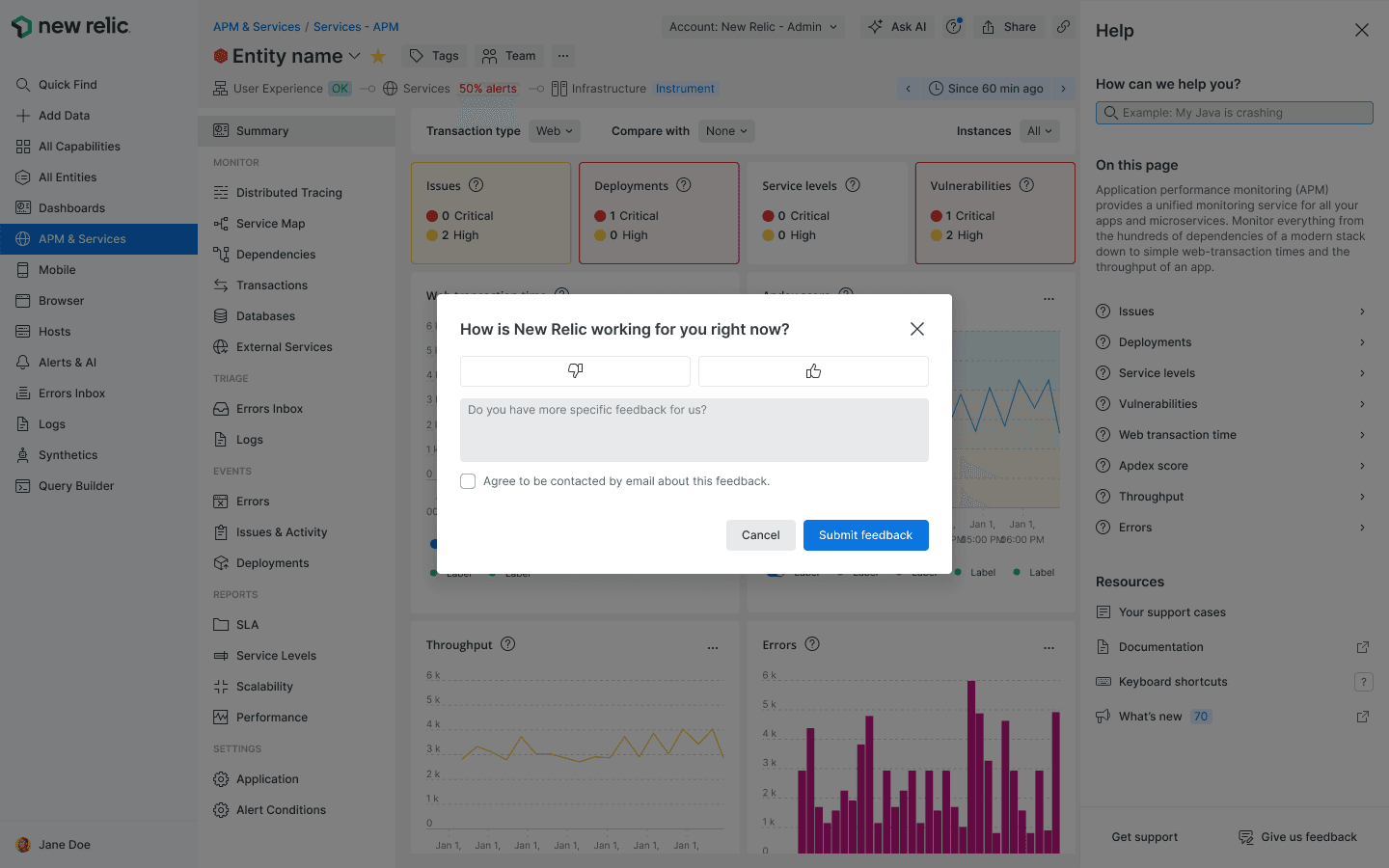
The Help panel is organized into four main sections: Search, Contextual Content, Resources, and Footer. Each section serves a specific purpose in helping users find information and support.
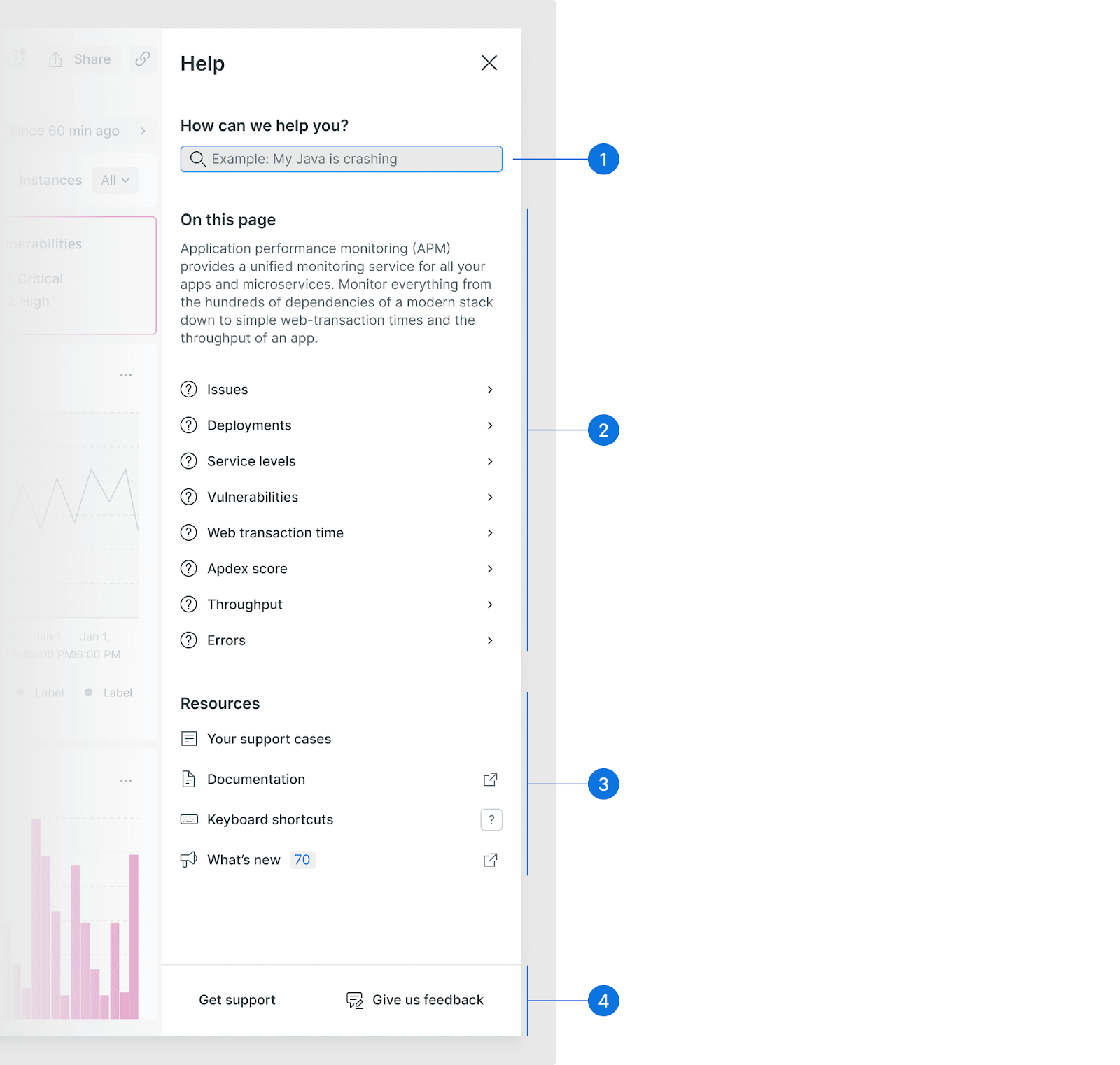
Search
The search field is auto-focused when the panel opens, allowing users to immediately start typing. Pressing Enter displays results from multiple sources simultaneously.
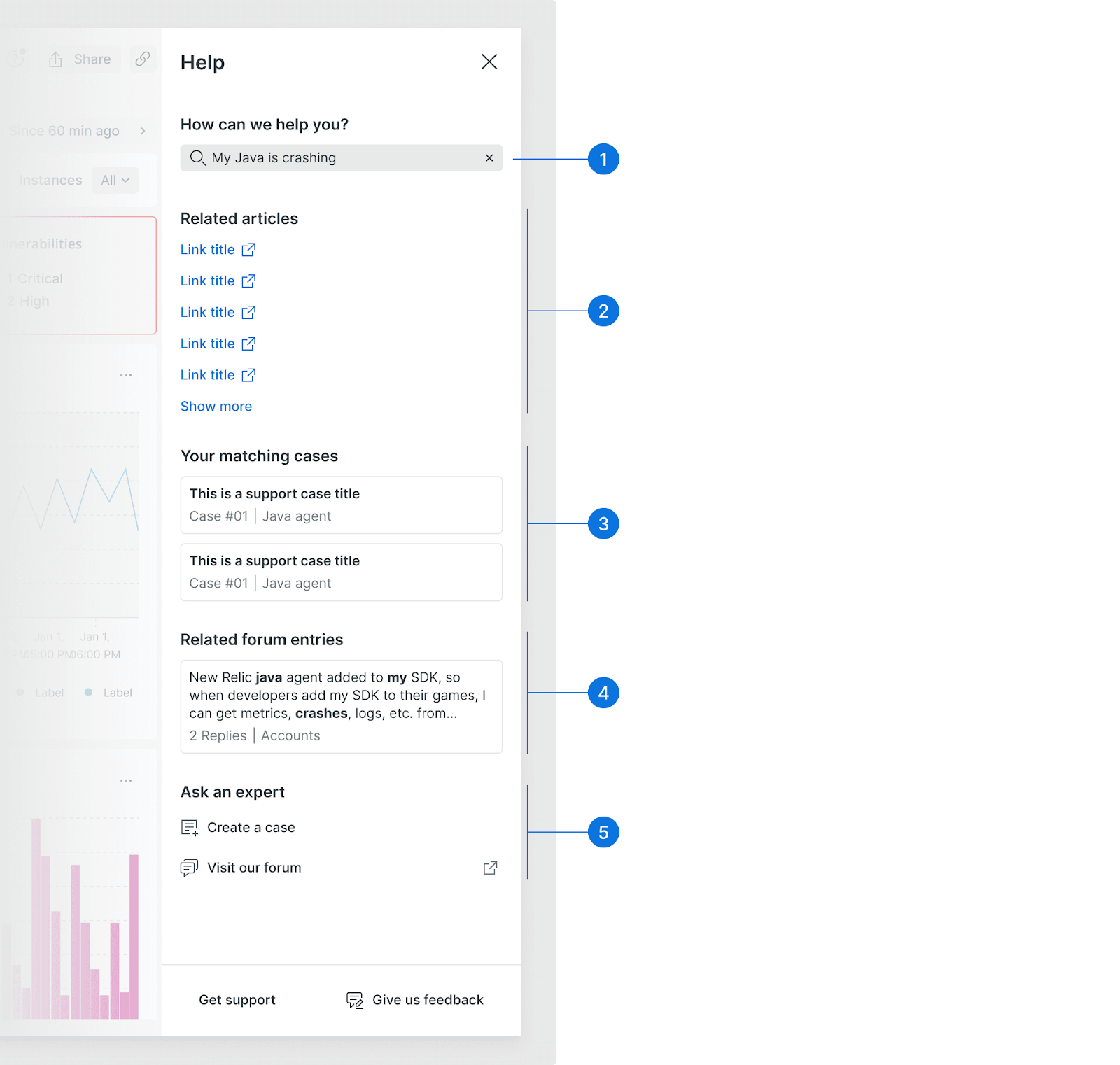
Search Results
When users search, they see:
- Search field with clear button: Click the × to clear the search and return to help home
- Related articles: Documentation and support knowledge articles, sorted by relevance
- Your matching cases: User's support cases that match the search query
- Related forum entries: Support forum posts matching the search query
- Support resources: Quick links to create new cases and access the support forum
Contextual Content
The help home displays information specific to the user's current location in the UI:
- Introductory paragraph: Brief overview of the current capability or feature
- Contextual definitions: Key terms used on the page with links to detailed explanations
- Use cases: Practical applications and workflows for the capability
- Benefits: Value propositions and advantages of using the feature
In-Page Discoverability
When users open the help panel, ? icons appear next to specific terms throughout the UI. These discoverability markers:
- Indicate that additional information is available for the term
- Link directly to definition articles when clicked
- Have matching terms in the help panel that also link to the same articles
This two-way linking ensures users can access definitions from either the UI or the help panel.

Definition Articles
Clicking a ? icon in the UI or a linked term in the help panel opens a definition article containing:
- Breadcrumb navigation: Return link to the main help page
- Article title: The term being defined, as it appears in the UI
- Multimedia content (optional): Explanatory videos, images, or interactive embeds
- Definition and explanation: Clear description with context and usage information
- AI prompt suggestions: Pre-configured prompts to continue exploration with New Relic AI

AI Integration
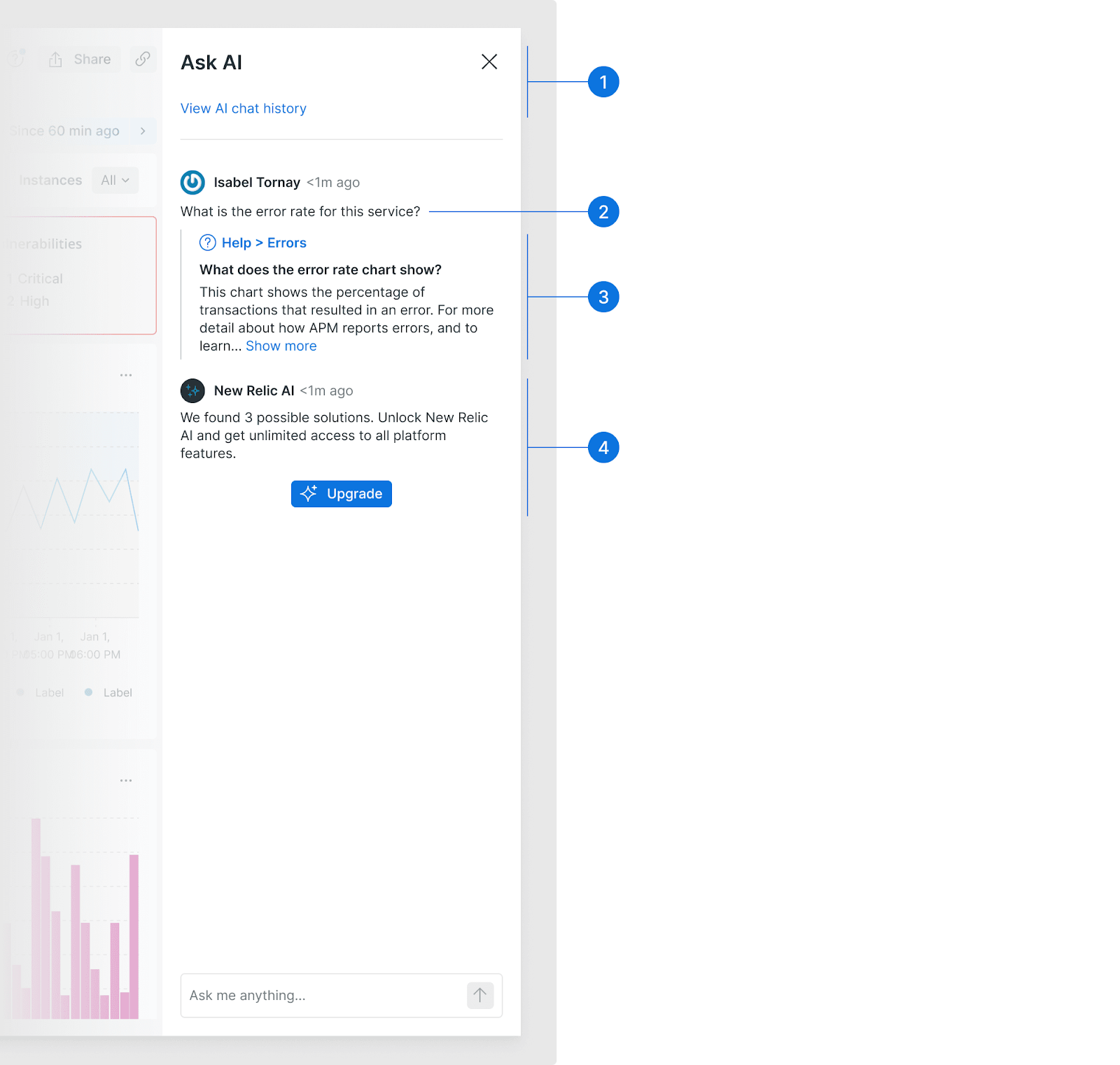
Selecting an AI prompt from a definition article opens the Ask AI panel with:
- The chosen prompt pre-filled and ready to submit
- Relevant context quoted from the help article
- AI-powered responses to the user's question
The AI integration experience depends on the New Relic AI initiative timeline and availability.
Resources Section
Quick access links to common help resources:
- Your support cases: View and manage in-app support cases
- Documentation: Opens New Relic's documentation site in a new tab
- Keyboard shortcuts: Displays a dialog with available shortcuts (also accessible by pressing ?)
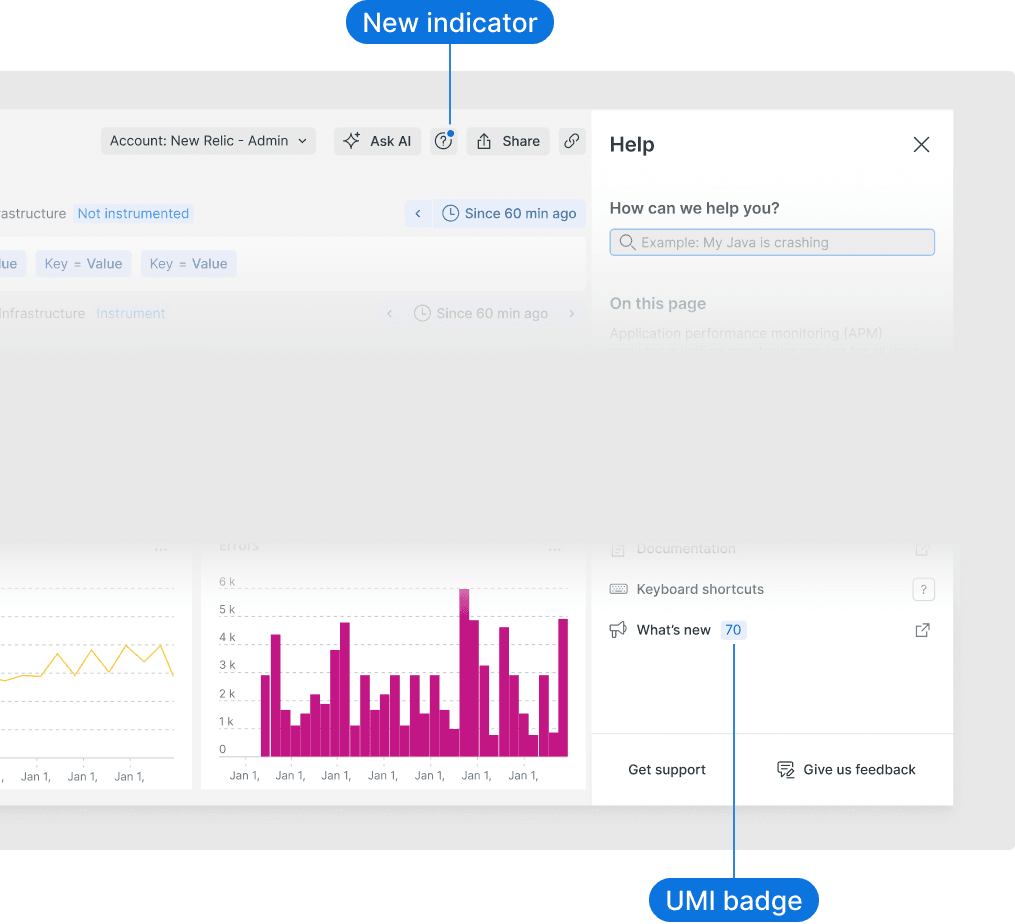
- What's new: Opens the What's New page on the docs site
- Displays a badge for unseen articles
- ? button in the app header shows an indicator for new content
- Both indicators disappear after the user views the content
Tip
External link icons indicate when resources open in a new page outside the platform.

Footer
The footer persists across all help panel views and provides two key actions:
Get Support
Opens a support page with problem-solving resources organized into:
- Troubleshoot: Self-service resources for independent problem solving
- Get support: Options to request assistance from the support team

Give Us Feedback
The main entry point for product feedback, allowing users to submit:
- Feature preferences and concerns
- Impressions of new capabilities
- Suggestions for product improvements
Feedback is collected through a dedicated dialog form.
Technical Components
The Help Experience integrates with these platform components:
- AppHeader: Hosts the ? icon help entry point
- Focus panel: Displays the help experience UI
- AppFrame: Parent container for both AppHeader and Focus panel